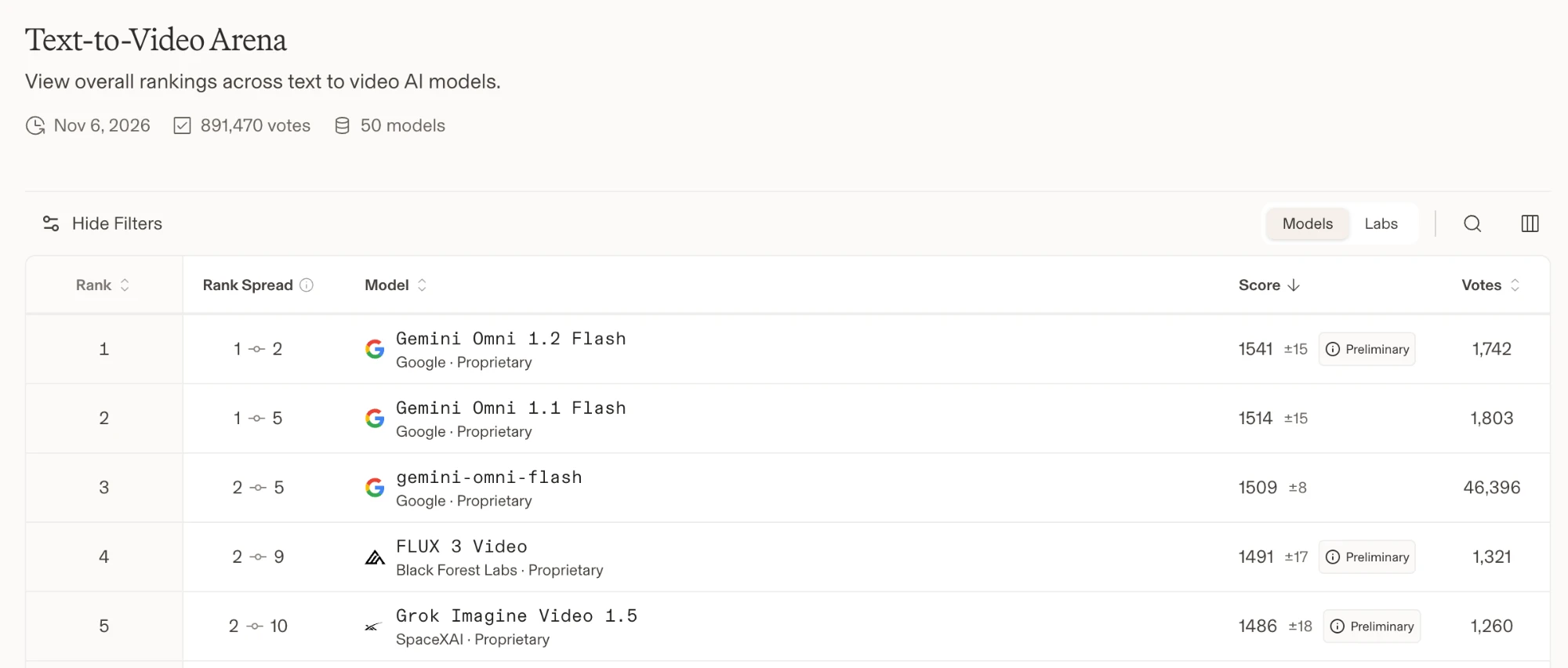
What's New in Omni 1.2

01

15-Second Clips, Extendable to 30 Seconds

A single Omni 1.2 Flash generation or edit now runs up to 15 seconds, up from 10. Scene extension adds 3 to 10 seconds per round, so one continuous story can reach 30 seconds in total without leaving the model.

02

Draft Fast, Deliver in 4K

Generate native 360p or 720p drafts first, compare takes quickly, then upscale only the winning result to 1080p or 4K. The draft-first workflow keeps iteration cheap while the final file stays sharp enough for client delivery.

03

About 30% Lower Price per Second

720p output costs about $0.07 per second with Omni 1.2 Flash, down from roughly $0.10 on the previous model. A full 15-second clip at 720p costs close to what 10 seconds used to, so longer takes no longer mean bigger bills.

04

Stronger Reference Consistency

Use up to 6 reference images, or 3 per character when directing two characters, plus up to 3 reference videos. Products, faces, and brand details stay consistent across shots, winning 60% of Google's identity-consistency preference tests.

05

Stateful Conversational Editing

Keep refining the same clip instead of regenerating it. Swap a product, adjust the lighting, or change the camera angle in a follow-up instruction, and the rest of the scene stays put while the characters, framing, and audio stay locked.

06

Cleaner Speech and Lip Sync

Dialogue sounds more natural, lip movement matches the words more closely, and scenes with several speakers keep each voice distinct. Talking-head clips, ads with spoken lines, and interview-style scenes come out far more usable straight from the model.

Omni 1.2 Flash vs. Omni 1.1 Flash Feature Comparison

Compare clip length, extension behavior, pricing, references, editing workflow, and audio quality across the two generations.

FeatureOmni 1.1 FlashOmni 1.2 Flash
Single generation lengthUp to 10 secondsUp to 15 seconds
Scene extension10-second steps, 40 seconds cumulative3–10 seconds per round, 30 seconds total
720p priceBaseline rateAbout 30% lower per second
Image referencesUp to 3 imagesUp to 6 images (3 per character for two characters)
Video referencesUp to 3 clipsUp to 3 clips with stronger identity carry-over
Editing workflowRegenerate for each changeStateful edits on the same clip, no regeneration
Speech and lip syncNative audioMore natural dialogue, clearer lip sync, multi-speaker separation

Omni 1.2 Flash Specifications at a Glance

The key clip lengths, output options, and reference limits available with Omni 1.2 Flash.

3–15s

Per Generation

Create clips up to 15 seconds in one pass, then extend compatible scenes by 3–10 seconds per round.

30s

Extended Scene

Build a longer continuous scene while the model carries forward visual and audio context.

Up to 4K

Delivery Resolution

Draft at 360p or 720p, then upscale a chosen result to 1080p or 4K for delivery.

6 + 3

References

Guide identity and style with up to 6 reference images and 3 reference videos per generation.

How it works

How to Generate a Video with Omni 1.2 Flash

Three direct steps: start from text or an image, direct the scene like a short film, then refine the same clip until it is ready to deliver.

  1. Step 01
    01

    Choose Omni 1.2 Flash Text to Video or Image to Video

    Start from a written scene or upload an image to anchor the subject and composition. Add reference images when a product or character must look the same in every shot.

  2. Step 02
    02

    Direct the Omni 1.2 Flash Scene

    Describe the subject, action, environment, camera movement, lighting, dialogue, and timing. Clips up to 15 seconds leave room for a full beat: setup, action, and payoff in one take.

  3. Step 03
    03

    Edit in Place, Then Upscale

    Review the draft, then change the product, lighting, or camera angle with follow-up instructions instead of regenerating. When the take works, upscale it to 1080p or 4K for delivery.

Omni 1.2 Flash FAQ

Frequently Asked Questions About Omni 1.2 Flash

Quick answers about Omni 1.2 Flash availability, length, resolution, pricing, references, editing, and audio.

Contact Omni Flash at support@omniflash.ai

Omni 1.2 Flash AI Video Generator - OmniFlash